
How to drop a pin in Apple Maps
- Open the Maps app.
- Touch and hold the spot on the map until a marker appears. Depending on your iOS version, the pin drops right away or you tap Pin to place it.
- To fine-tune it, drag the map until the pin sits exactly where you want it.
Only one dropped pin shows at a time. Save a pin if you want to keep it; saved pins appear in Places under Pinned.
How to send a pin from Apple Maps
This works for any place, including somewhere you aren’t.
- Tap the pin to open its card.
- Tap Share. For a saved pin, you can also go to Places, tap Pinned, swipe left on the pin and tap Share.
- Choose Messages, WhatsApp, Mail or another app, then pick who gets it.
The other person gets a link that opens the place in Apple Maps.
How to send a pin in Messages
- Open a conversation, tap the + button and tap Location.
- Tap the map pin button in the corner of the map, then drag the map until the pin is where you want it.
- Tap Send Pin, then send the message.
A pin sends one fixed spot. The other person can’t follow you as you move. In an SMS conversation, Apple suggests sending a pin instead of your live location.
How to send a pin location on WhatsApp
WhatsApp’s own Location option (tap + in a chat) is built around where you are: it can send your current location, your live location or a place nearby. To send a spot somewhere else, share it from Apple Maps:
- Drop a pin on the spot in Apple Maps, or search for the place.
- Tap the pin, tap Share, then tap WhatsApp.
- Choose the chat and send. They get a link to the place in Apple Maps.
If WhatsApp isn’t in the row of apps, scroll to the end of the row and tap More to find it.
How to copy a pin’s coordinates
- In Maps, go to Places and tap Pinned, then open the pin.
- Swipe up to Coordinates.
- Touch and hold the coordinates, then tap Copy.
Paste them into any chat. Coordinates work in almost every maps app, which helps when the other person doesn’t use Apple Maps.
Pin vs. live location: what the other person sees
- A pin
- One fixed spot. It doesn’t update, and it doesn’t reveal where you are unless you put the pin where you are.
- Live location (Messages or Find My)
- Your real position, updating as you move, for as long as you choose: one hour, until the end of the day, a custom time, or until you turn it off. Both people need iOS 15 or later.
Neither one changes your iPhone’s GPS. Dropping a pin somewhere else doesn’t move you on the map, in Find My or in any other app. See the full comparison of ways to share a location.
How to send a pin to someone with an Android phone
Share the pin from Apple Maps as above. The link opens Apple Maps on the web (maps.apple.com) in their browser. If they’d rather use their own maps app, send the pin’s coordinates instead.
Optional
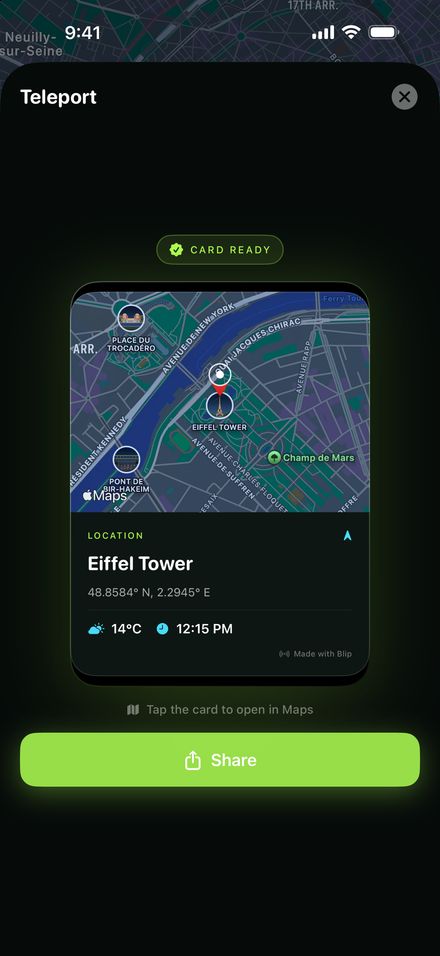
Send a pin as a card with Blip
Maps sends a link. Blip, our iPhone app, sends the place as a card: a map snapshot with the place name, coordinates, local time and weather, plus the same Apple Maps link. It works in WhatsApp, Messages, Mail and any other app in the share sheet.
Blip doesn’t change your iPhone’s GPS or Location Services.
If the Location option or Share button is missing
- Update iOS. Some location-sharing options need iOS 17 or later.
- Turn on Location Services to send where you are now: Settings → Privacy & Security → Location Services. A dropped pin for another place doesn’t need it.
- Can’t see an app in the share sheet? Scroll to the end of the app row and tap More.
FAQ
Does sending a pin share my live location?
No. A pin is a single, fixed spot. It doesn’t update as you move. Only live location sharing in Messages or Find My follows you, and you choose how long it lasts.
Can I send a pin for a place I’m not at?
Yes. In Apple Maps you can drop a pin anywhere, and in Messages you can drag the map before you tap Send Pin.
Does dropping a pin change my iPhone’s location?
No. A pin only marks a spot on the map. Your iPhone’s GPS and the location other apps see stay the same. Here’s what can change it, and the risks.
Can someone with an Android phone open my pin?
Yes. A pin shared from Apple Maps arrives as a link, and on a phone without Apple Maps it opens Apple Maps on the web (maps.apple.com) in the browser.
How do I stop sharing my live location?
In Messages, open the conversation, tap the contact’s name, then tap Stop Sharing My Location. In Find My, open People, choose the person, tap More, then tap Stop Sharing My Location.
Why is the Location option missing in Messages?
Some location-sharing options need iOS 17 or later, so update your iPhone first. Sharing your current position also needs Location Services turned on for Messages.